
📱 About the NHS App
The NHS App is a free, secure app that lets you manage your health online. You can book appointments, order repeat prescriptions, and see your medical records all in one place.
This guide walks you through everything from how to get started, what the app lets you do, how to use it to manage your health online, and what to do if you get stuck along the way.


📋 Quick Setup Checklist
First, you must be registered with a GP practice. This lets the app link to your health record. If you are not registered, you can find your nearest GP practice and sign up online. You will also need:
- A UK smartphone or tablet (running Android 8+ or iOS 15+) or computer
- Internet access or mobile data
- A UK mobile number to get codes by text
- An email address you can use
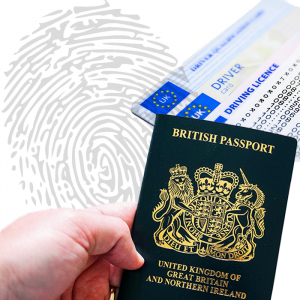
- Photo ID, such as a passport or driving licence. Your GP may also be able to confirm who you are
- Basic digital skills, like downloading apps, typing in codes, and taking photos
The NHS App is only in English. If English is not your first language, ask someone you trust to help you use the app.

How to download the NHS App on iPhone and Android | NHS (BSL)
📲 Getting the NHS App For iPhone or iPad (App Store)
- Open the App Store on your device.
- Tap the search icon and type “NHS App”.
- Find the app with the NHS logo.
- Tap Get or the download icon.
- Enter your Apple ID password or use Face/Touch ID if prompted.
- Wait for the app to download, then tap Open.
📲 Getting the NHS App For Android (Google Play Store)
- Open the Google Play Store on your device.
- Tap the search bar and type “NHS App”.
- Find the app with the NHS logo.
- Tap Install.
- Wait for the app to download and install.
- Tap Open to start using the app.
👤 Making an Account (NHS Login)
To start using the NHS App, you need to create an account, called an NHS login.
Open the App and follow the instructions. You’ll need to:
- Enter your email address
- Create a password
- Enter the security code sent to your email
For extra protection, you’ll also need to set up two-step verification by:
- Adding your mobile or landline number
- Entering the 6-digit code sent to your number
🪪 Prove Who You Are
You can start using basic NHS app services like finding NHS services or checking health conditions right away.
To access personalised features like your health records or booking appointments, you’ll need to verify your identity.
You’ll be asked to:
- Take a photo of your ID (Passport, driving license or another accepted ID document)
- Record your face using your camera
- Add your NHS number
If you don’t have any photo ID, you can ask your GP practice may be able to give you information to confirm your identity.
Turn on Notifications in the NHS App
Send and receive important health messages from your GP and other parts of the NHS
Manage Your Health with the NHS App
The NHS App helps you handle health and care from home, saving time and hassle for you and your loved ones.
Not got the app yet? Jump to the top of the page to get started.
You can click each one for step-by-step and video guides.
- 💊 Order repeat prescriptions – request your medicines and choose a pharmacy. No need to call or visit your GP; your prescriptions are ready when you need them.
- 📱 Get your medication anywhere – show a barcode from the app at any pharmacy to collect it. Ideal if you are on holiday or can’t get to your usual pharmacy
- 📨 Request sick (fit) notes – get a note for work without calling the surgery. Takes the stress out of managing illness and time off.
- 🩻 Test results – see results of tests ordered by your GP.
- 🔍 Find documents about your medical history – see letters and other documents from GP and hospital care. Access everything from home.
- 🏥 Manage hospital referrals – stay on top of appointments and waiting times without having to make a call.
- 💬 Send and receive messages – get updates from your GP and the NHS, including reminders like screening invitations. Important notices won’t be missed.
- 🧑🧑🧒🧒 Manage care for others – parents or carers can book appointments and view records for someone else, with permission. Saves trips and calls when caring for loved ones.
If you need a little help getting started, let us know and we can send you details of NHS App support sessions.
✅ Advice, Services and Preferences
The NHS App helps you manage your care. You can also find services and make choices about your health.
- Check NHS advice – see trusted information to understand symptoms and look after yourself.
- Find NHS services – search for local GP practices, pharmacies, hospitals, and urgent care.
- Organ donation – view or update your organ donation choices safely in the app.
- Health data choices – see or change how your NHS data is used for research and planning.
- Update your details – keep your phone number, email, and address correct.
- Security and privacy – manage how you sign in and keep your health information safe.
⚙️ App Settings and Help
- You can zoom the text up to 200% to make it easier to read.
- You can change the font, text colour, and contrast using your device’s accessibility settings.
- You can move through parts of the app using a keyboard or voice commands.
- You can turn on your device’s screen reader to have text read out loud.
- You can find helpful guides from charities such as AbilityNet and RNIB. These guides show you, step by step, how to set up your device for better access.
- You can also use visual aid apps like Be My Eyes or Seeing AI. These apps can help you read text or describe what is around you, and they can work alongside the NHS App.
🛠️ Troubleshooting Quick Guide
The NHS App works best when your device, internet, and settings are ready. Try these steps if something is not working:
1. Check your device
- Use a phone or tablet with Android 8+ or iOS 15+.
- Make sure your battery isn’t low.
- Update the NHS App to the latest version.
- Turn your phone off and on again.
2. Check your internet
- Make sure you are connected to Wi-Fi or mobile data.
- If the app is slow, try moving to a stronger signal or restarting your router.
3. Login issues
- Make sure your email, phone number, and password are correct.
- Check your spam or junk email folder for verification messages.
- Restart the app and try logging in again.
4. GP connection problems
- Your GP must allow access to your records in the app.
- If data is missing, contact your GP practice for help.
5. App not loading properly
- Close the app and reopen it.
- Restart your device.
- Make sure your operating system is up to date.
6. Accessibility help
- Use device settings for bigger text, high contrast, or screen readers.
- You can also use apps like Be My Eyes or Seeing AI for extra help.
7. Get support
- Use the Help button inside the app.
- Online support: nhs.uk/help
- The NHS App team can help with technical issues. Your GP cannot fix login problems remotely.